Christmas and New Year Savings!
Get 25% discount on Master Voyager until January 10, 2013.
Home > Support > Online Help Manual > How to use Master Voyager > Limited User Account / Non Admin User Account
When protected media is launched on a computer under a limited user account (i.e. an account without administrator's privileges, limited user, guest, etc.) and when the local security policy is configured to not allow the connection of any devices as new hard drives without administrator's rights, there is a big problem. Mobile Voyager uses on-the-fly decryption technology and needs permission to add new drive letters to the system, so you are not able to open your secure partition on a protected CD/DVD/USB without administrator's permission (Mobile Voyager showed a special window asking for the administrator's password to continue).
Now, since version 2.00, we added a new tool to bypass this limitation. Partition Explorer.
Partition Explorer is a special program that is added to your protected media automatically when you create/modify secure partitions on the media.
This program allows you to open a protected partition under limited user account using your password and get access to the files located inside the secure partition. The program has the classic two files panes interface and looks very similar to Win7 Explorer.
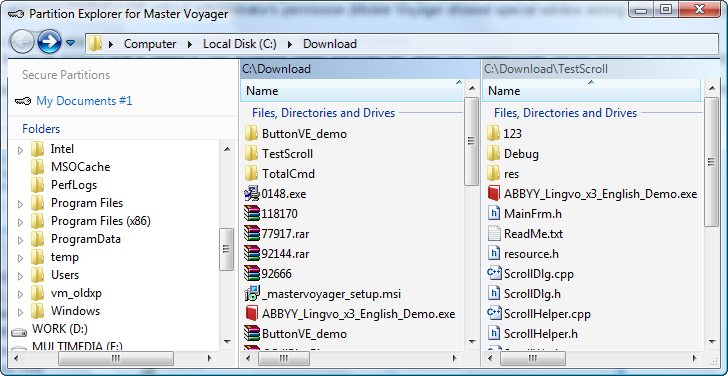
The screenshot of Partition Explorer. Use Drag-and-Drop to copy files between panes.
The main goal of the program is to provide access to files inside secure partitions and provide the ability to copy files from a secure partition to any other drive/folder on the computer.
Additionally, Partition Explorer has the feature Secure Files Deletion. I.e. you can securely delete some files on the computer to be sure that they cannot by recovered by any third-party program.
How can I launch Partition Explorer?
Usually, you do not need this program at all because Mobile Voyager (the program that is also added to the protected media) provides a more flexible way to access protected files (it opens every secure partition as a virtual hard drive in on-the-fly decryption mode). But when you launch your protected media under a limited user account on Windows XP, or under limited/admin account on Vista you will see the following window:
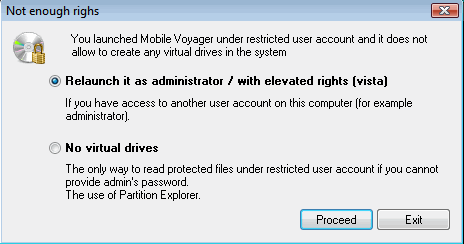
(1) Select the first option if:
1. You launched a program under Vista, it is your home computer, and you have a single user account (with administrator rights). In this case, the OS will ask you to confirm the operation and then all of your secure partitions will be opened as virtual hard drives without any problem.
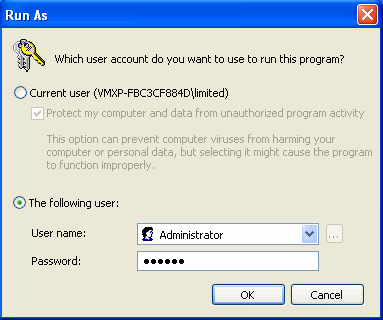
2. You launched a program under Vista or XP under limited user account (without administrator's privileges) and you know the administrator's password or can ask for the computer's administrator to go to your computer and enter the password manually.
In this variant, when you click the Proceed button you will see the following window
(2) Select the second option if:
In all other cases. I.e. when you launch a protected CD/DVD/USB stick on another computer, under a limited user account, and you cannot provide the administrator's password. In this case, the Partition Explorer program will be launched.
Christmas and New Year Savings!
Get 25% discount on Master Voyager until January 10, 2013.
Self Defence Package
3 product bundle (CD Encryption + USB Encryption + File Encryption + Drive Encryption) at a special price
Subscribe to our Newsletter.
Get notified about new products releases, new significant updates of existing products. Be first to know about short season's discounts and special offers.
Master Voyager Home Edition 3.35
November 13, 2016
Improved compatibility with Windows 10.
Master Voyager Home Edition 3.32
January 11, 2015
Fixed incompatibility problem of the licensing system with the 2016 year.
Master Voyager Home Edition 3.31
November 10, 2014